


If you live in Kerala and you’re even slightly interested in government jobs, Thulasi PSC is something you should know about. It’s basically the online portal the Kerala Public Service Commission runs for all their recruitment stuff — applying for posts, checking results, tracking where your application is at, all of that. The government launched it to cut down the paperwork mess and make things faster for everyone. In this post, I’ll tell you everything I know about using it, from signing up to applying for jobs — so read on if you need help with this.
Kerala PSC Thulasi: What It Actually Is
So, Thulasi PSC is this website, the Kerala PSC set up to handle all their hiring online. Before this, people had to physically go submit forms, stand in lines and keep checking newspapers for updates — you know how it was. Now you can apply for police jobs, civil service posts, clerical positions, pretty much anything the Kerala Government hires for, all from this one place. They also post vacancy notifications here and you can see your own application status without calling anyone or visiting an office. It’s not the perfect thing, but this is way better than the old system.
Okay, want to log in? I’ll show you how in the next part.
How to Register for the First Time
So you haven’t used this portal yet? First thing — you’ll need to sign up. It’s not rocket science, but yeah, it’s a bit of a drag because they ask for a lot of stuff. Just power through it.
Open https://thulasi.psc.kerala.gov.in/thulasi/ in your browser. That’s the actual official site, so save it somewhere and don’t go clicking random links that pop up on Google. Once the page loads, hit the “New Registration” button.
Now you’re looking at a long form. Name, address, phone number, email, your education history — basically everything about you. Fill it in carefully, don’t rush. You’ll also need to upload a scanned photo and your signature. And listen, don’t just snap a blurry photo on your bed and call it done. Make sure it’s clear, properly lit, and your signature needs to be on clean white paper. I know a guy who had to redo his whole registration because his signature photo had a shadow on it. Total waste of time.
Once you’ve filled everything, don’t just smash the submit button. Go back through the form once, check your spelling, make sure your phone number is right, all that. Catching a mistake now saves you from crying later. When you’re sure it’s all good, click “Submit.” That’s it — you’re in. Next time, you just log straight in.
Logging In Step by Step

To log in, you need three things: your User ID, your password, and the access code shown on the screen. The User ID and password are case-sensitive, so if you typed your password with a capital letter during registration, you have to do the same now. A lot of people get stuck here because of the caps lock.
- Here’s how to log in:
- Open https://thulasi.psc.kerala.gov.in/thulasi
- Provide your User ID, Password and give also the access code from the image
- Click “Login”
- You should see your My Profile Page now
If it says wrong password, check your Caps Lock first. Happens to everyone.
See Your Profile Page Dashboard
Once you’re logged in, you’ll land on your profile page. This has all your basic info — name, address, date of birth, what you studied, all of that. The good thing is you can edit this whenever something changes. Moved to a new place? Got a new degree? Just log in and change it yourself. No calls, no trips to any office, no waiting around for someone else to do it.
Now let me tell you about the one-time registration thing — this is actually useful.
One-Time Registration: The Useful Part
This is probably the best feature on the portal. You register once, put in all your personal and educational details, and that’s it. After that, every time you apply for a new job, you don’t have to fill out the same information again. It’s already saved. This saves a ton of time, especially if you apply for multiple posts. I know people who applied for like five different jobs in a month and didn’t have to re-enter anything after the first time.
Want to know how to actually apply? Next section.
Applying for Jobs
Here’s how you apply once you’re registered and logged in:
- First, you need to Log in with your User ID and password
- On the homepage, click “One Time Registration Process” first, then log in again
- Click the “Apply Now” tab
- Choose the post you want from the list and click “Apply Now” next to it
- Fill out the application form — most of your details should already be there from your one-time registration, but you might need to add work experience or other specifics
- Upload whatever documents they ask for — your certificates, caste certificate if you have one, photo again sometimes
- Pay the fee online. They accept debit card, credit card, net banking — whatever works for you
After payment goes through, take a screenshot or print the confirmation page. Keep it safe, you’ll need it later
That’s the whole process. Not too bad once you’ve done it once.
The Mobile App
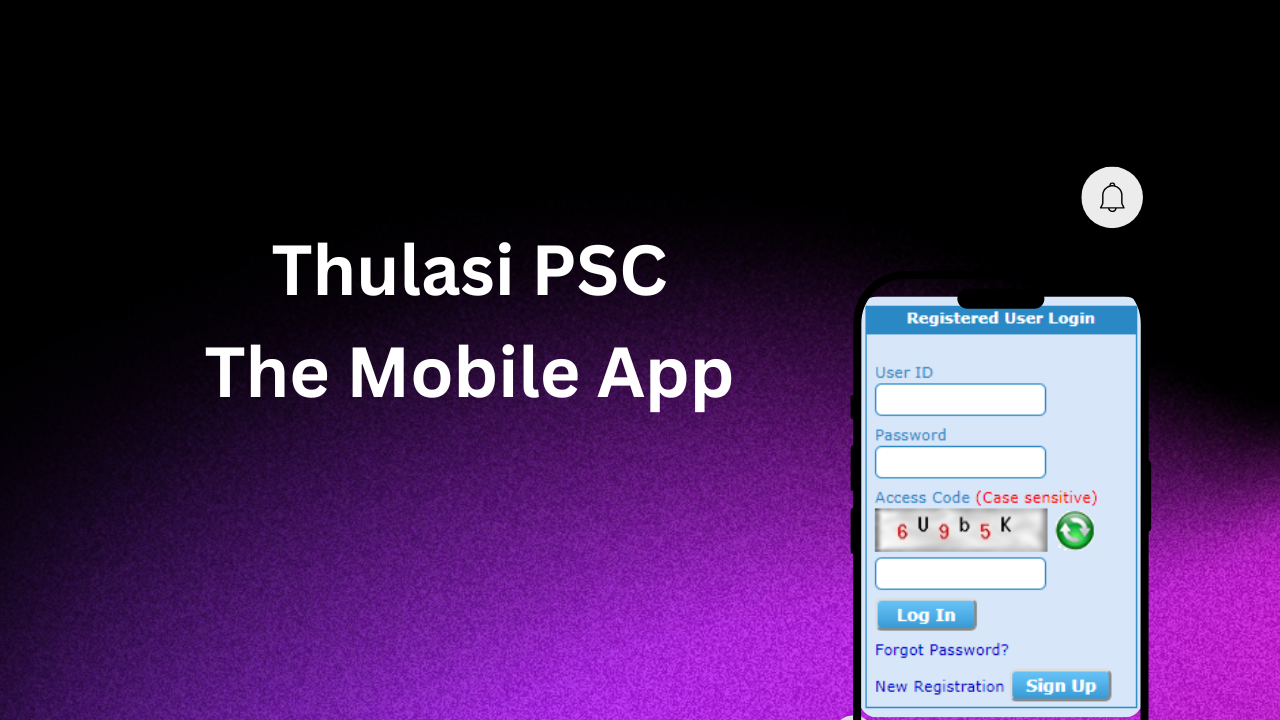
There’s also a Thulasi PSC app you can get from the Google Play Store. It’s free. Does pretty much everything the website does — you can apply for exams, check job alerts, get result notifications, all on your phone. After downloading, log in with the same User ID and password, update your profile if needed, and you’re good. The app is actually decent — not glitchy, easy to move around in. Good for when you don’t have a computer nearby or you just want to quickly check if any new posts came up.
Help Desk and Support
If something goes wrong — page won’t load, payment failed, can’t log in, whatever — here’s how to get help:
- Check the FAQ section on the website first. Most common problems are already answered there
- Email them at [email protected] if it’s something specific to your account
- Or call 0471-2546400. It’s a helpline number, someone actually picks up and helps you figure it out
Final World
Look, if you’re in Kerala and trying to get a government job, Thulasi PSC is basically your starting point. It’s not fancy, it’s not the most modern website out there, but it gets the job done. The one-time registration saves you from repeating yourself every single application, the mobile app lets you keep track on the go, and the whole thing cuts out a lot of the running around you used to have to do. Just make sure you register properly the first time, keep your login details somewhere safe, and double-check your documents before uploading.
My advice? Set up your account today, even if you’re not applying for anything right now. That way, when a good post comes up, you’re not scrambling to register at the last minute. Check the portal every few days for new vacancies, enable notifications on the app, and don’t wait till the deadline to apply — the site can get slow when everyone’s trying to submit at once. Hope this helped you figure things out. Good luck with your applications, and I hope you get the post you’re going for.
